



Payments
Ask to get paid from one screen. Your client pays the way they like.
Send a request, your client sees exactly how to pay, and the credits land when you confirm the money came through.
Credits are added only when you confirm the payment came through. Card payments confirm themselves. Everything else waits on you.
Start a request
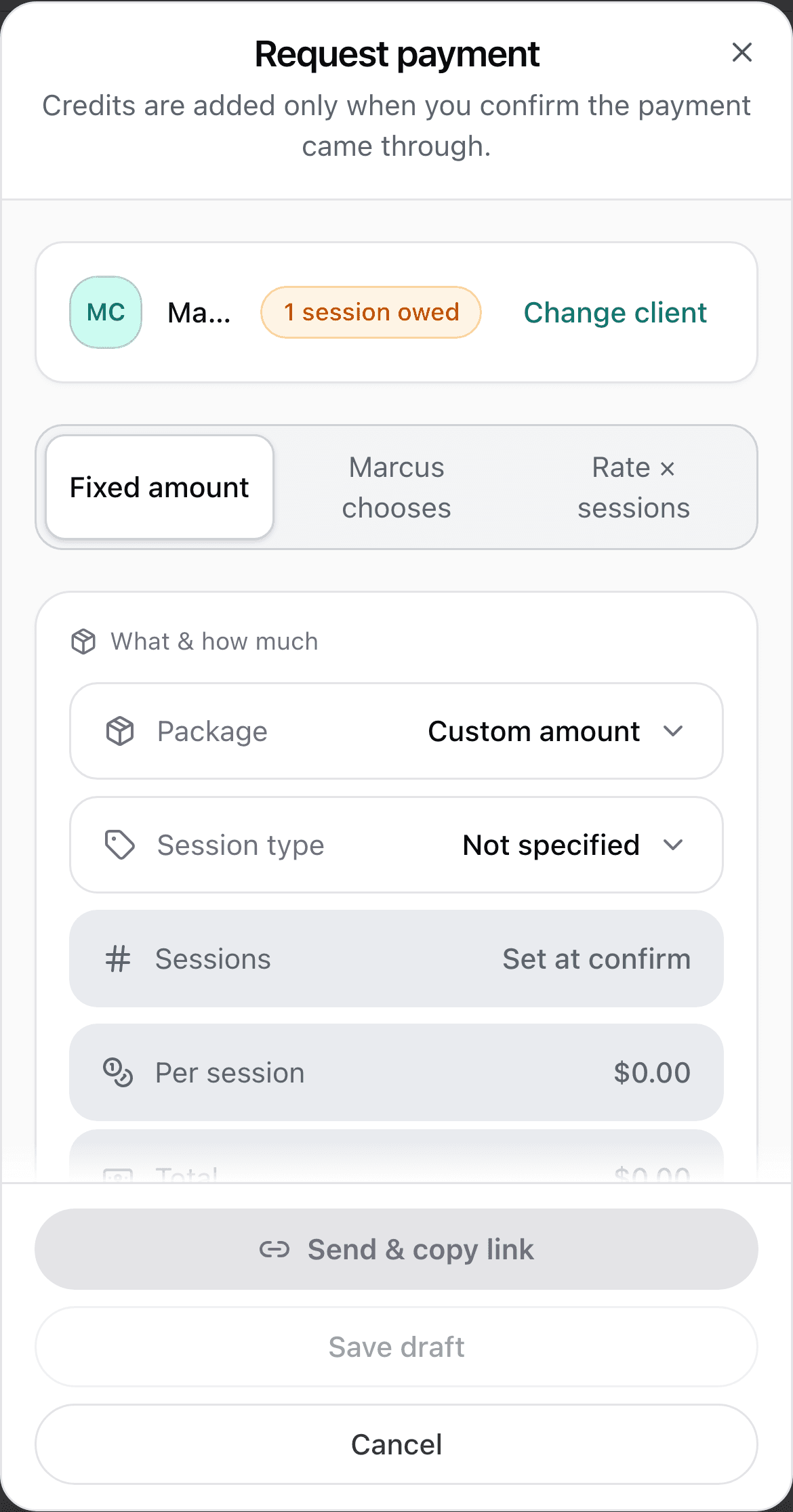
Open a client and tap Request payment under Payment requests. Finance and the dashboard Payment button do the same thing, they just ask first whether you are asking for payment or recording money you already have.
Nothing is recorded until you confirm.
Pick the shape
Three tabs, and the one you pick is how the request is priced.
- Fixed amount: a package, or a custom amount with your own line item like “Remaining balance for June”.
- “[your client's first name] chooses”: tick the packages they can pick from and the price follows their pick.
- Rate × sessions: set a session type and a rate per session, with an optional minimum and max, and they choose how many.
- Add a Message to your client if you want it on the payment page. Pick the shape before you send, it cannot be switched afterwards.
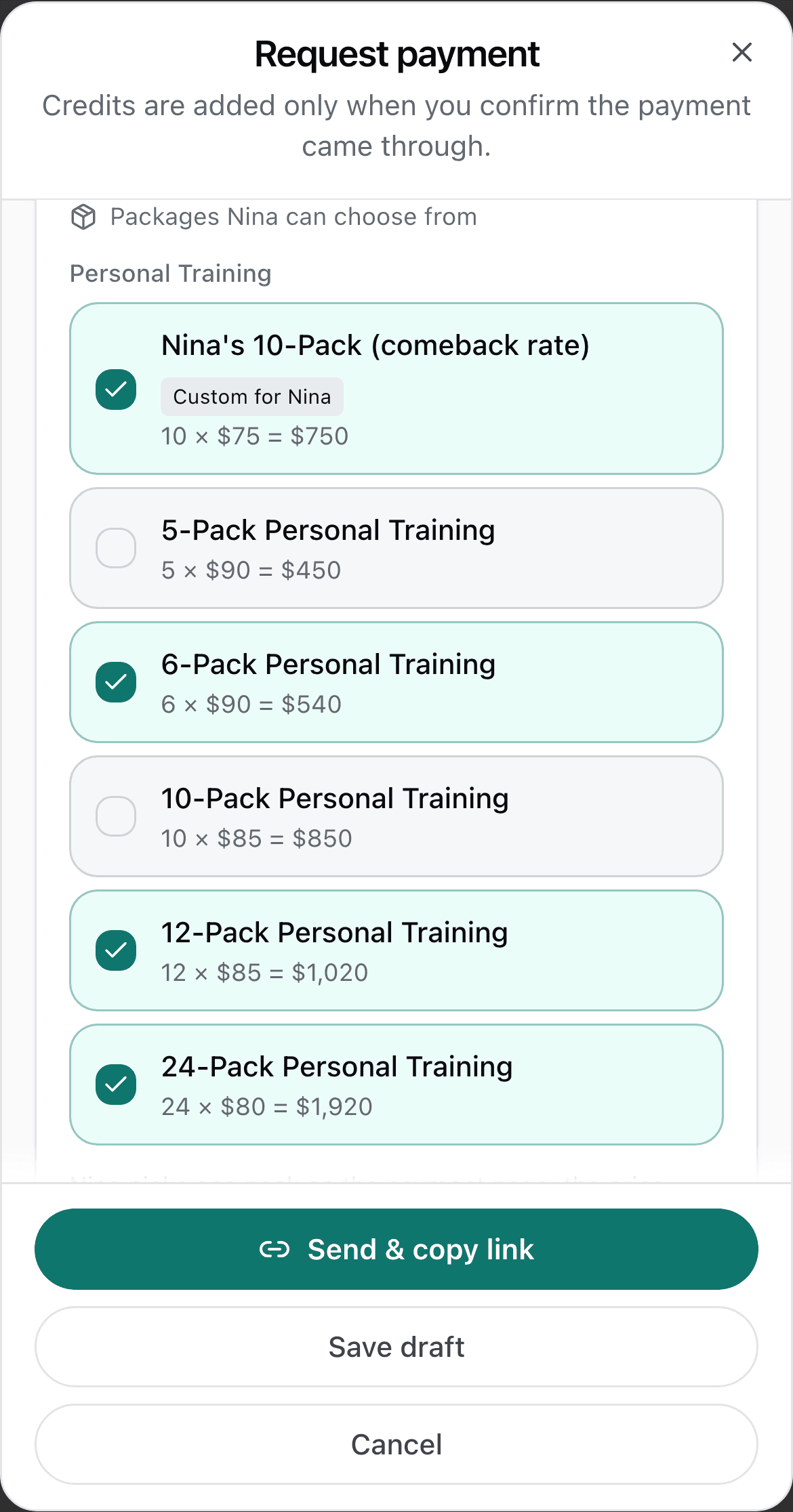
Tick the packs to offer. A pack built for this one client sits on top.
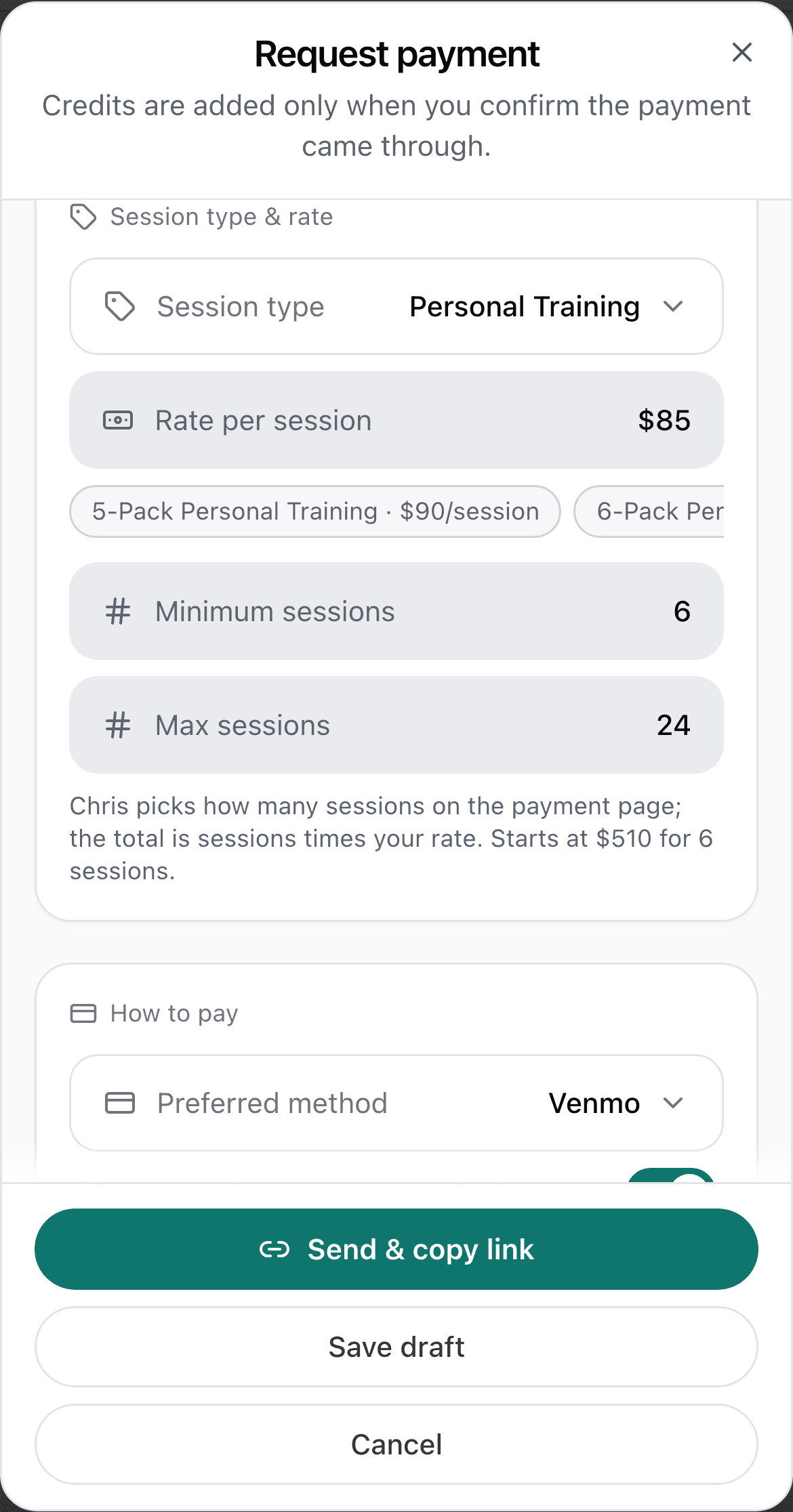
Or set a rate and a range, and let them pick the number.
Choose how they can pay
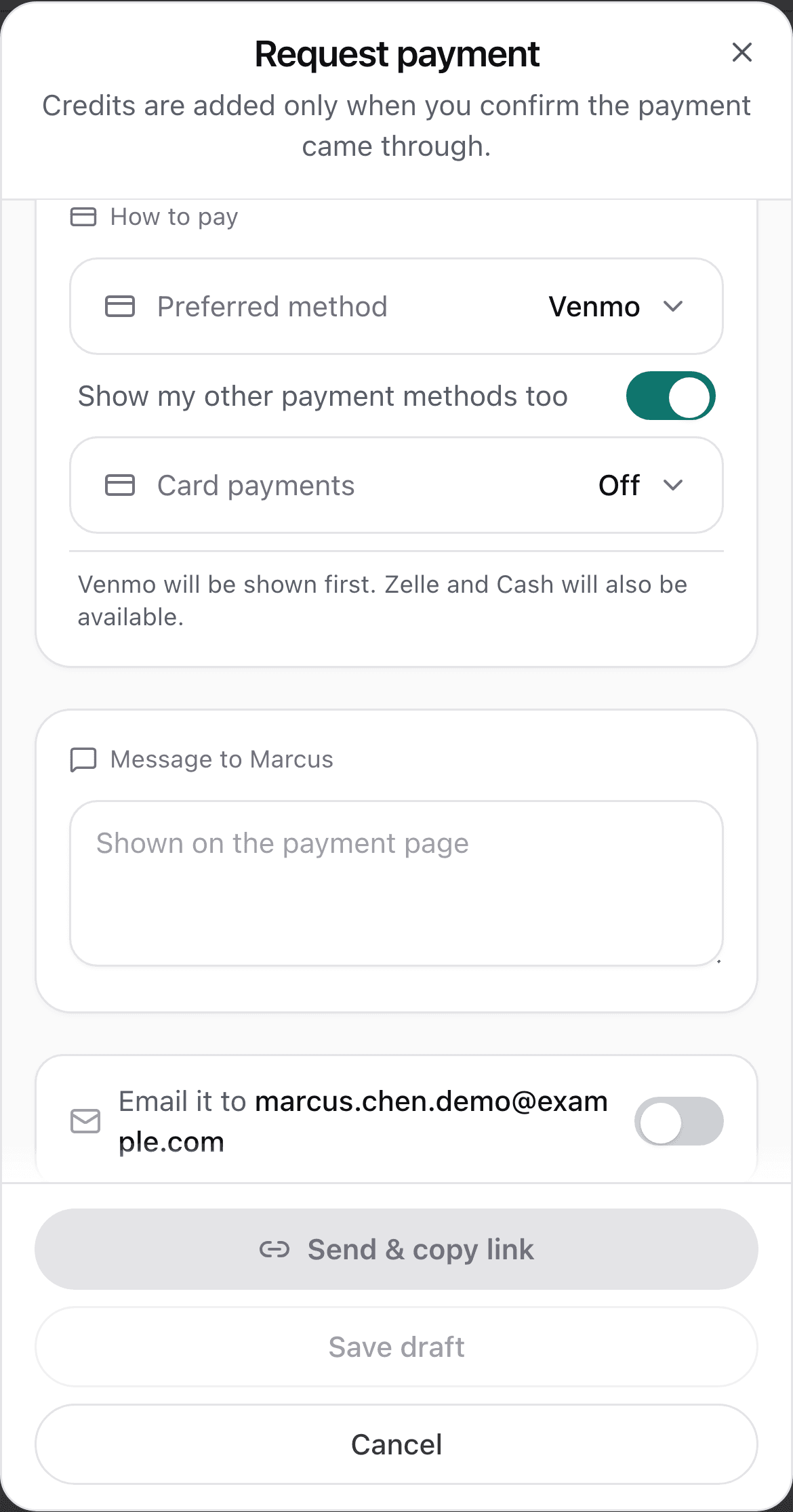
Your methods live in Settings, Payment methods: Zelle, Venmo, Cash App, PayPal, cash, check, bank transfer, other. Each one holds your handle and your own instructions, so a client never has to guess.
On the request you pick the Preferred method, switch on Show my other payment methods too, and set Card payments to Off, Offered, or Offered first once Stripe is connected.
However they pay, the money goes to you. Venmo, Zelle, cash and the rest happen directly between you and your client, and TrainerSuite only records them. Card payments are charged on your own Stripe account, so your name is on your client's statement and the payout goes straight to your bank.
Send it
Send & email mails the request, and the link is copied to your clipboard every time. Clients who use the TrainerSuite app with notifications on also get a Payment requested notice on their phone.
Want to text it instead? Paste the copied link into your own message. It lands as a card that reads Payment request from your trainer, with no amount and no name showing in the preview. Your client does not need an account to open it.
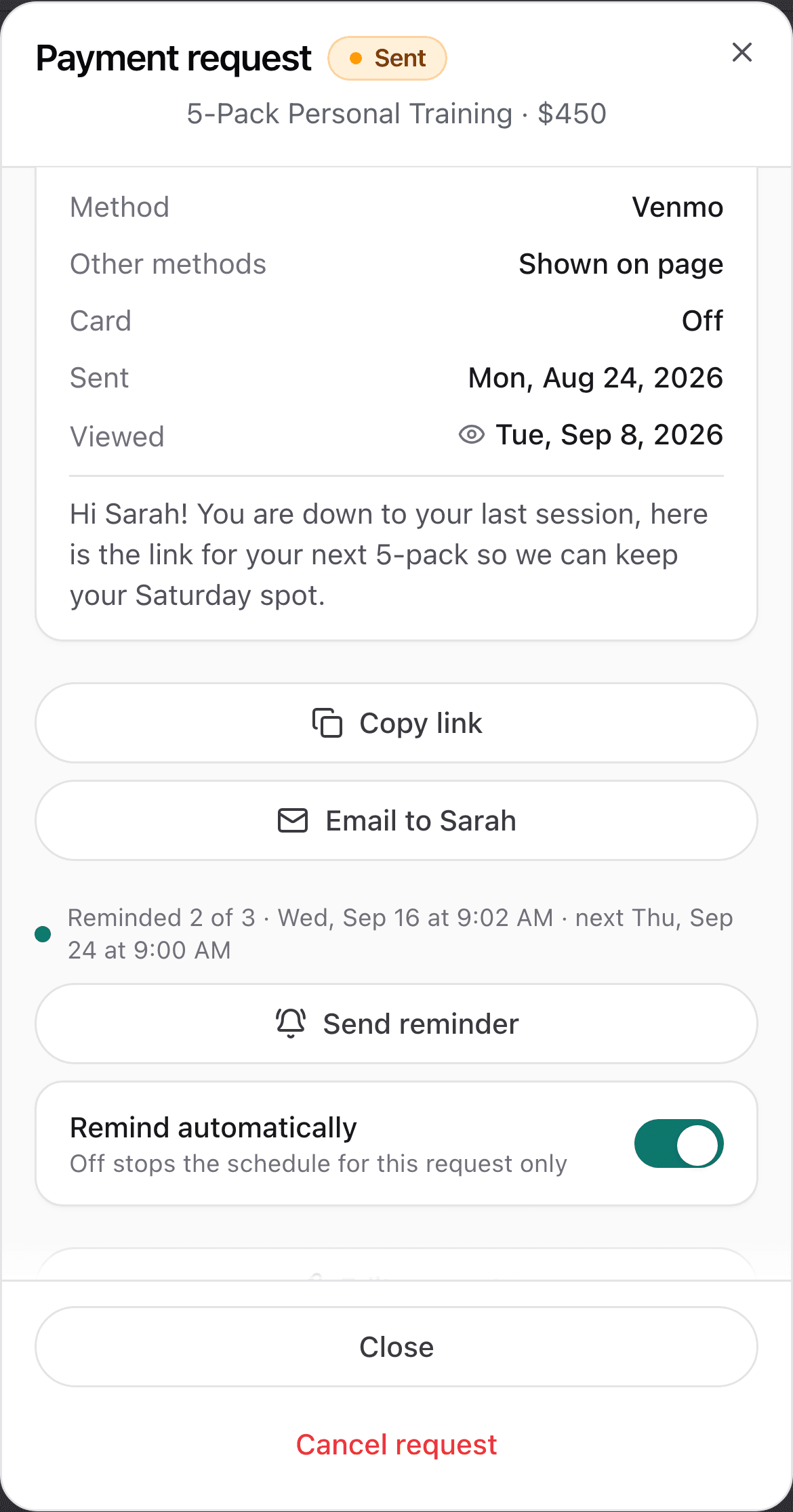
One sent request, and every way to get it in front of them.
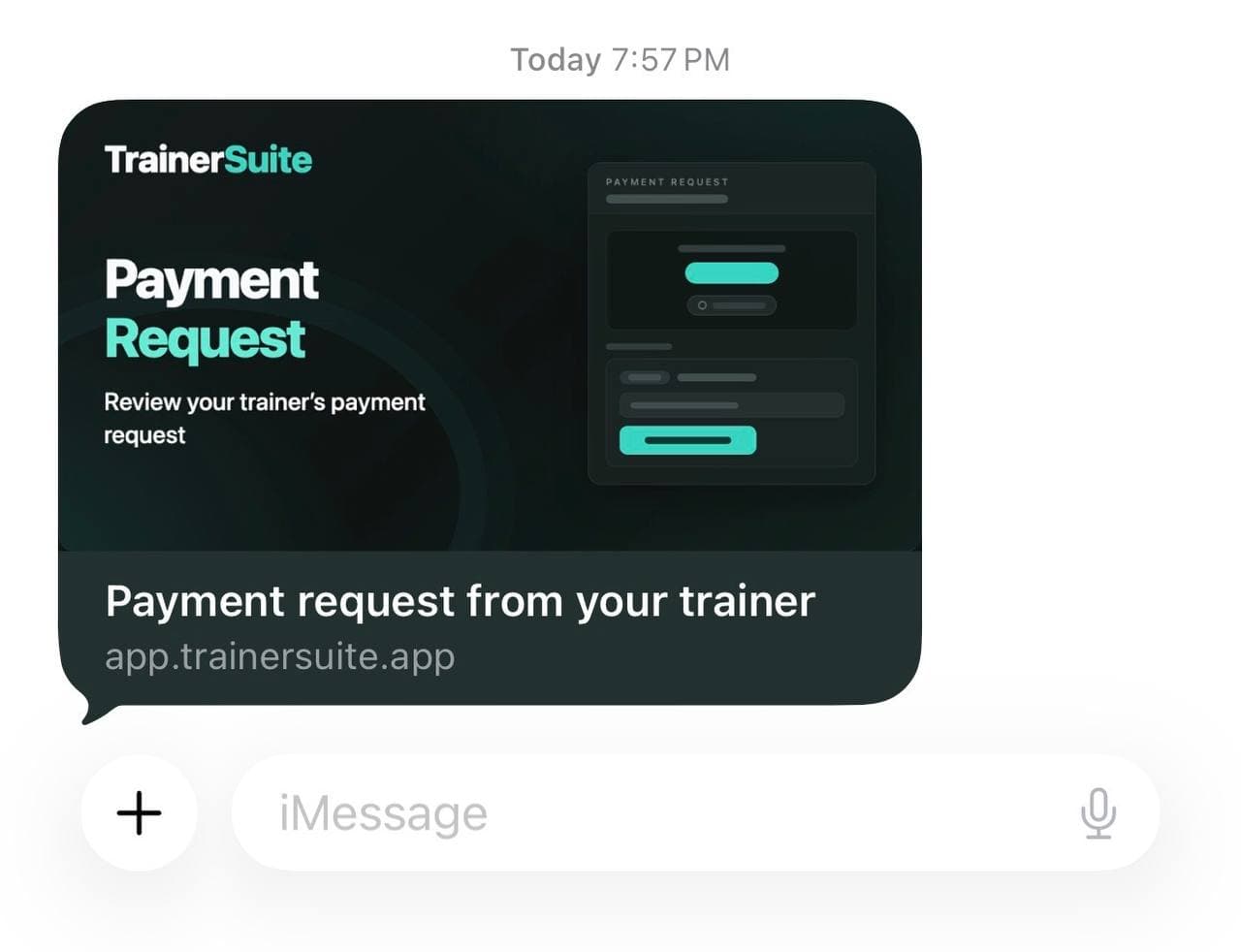
The same link, pasted into a text.
What your client sees
A clean payment page with your business name, the amount or their choice, your note, then How to pay. Venmo, Cash App and PayPal open with the amount already filled in. If a link does not open, your handle and instructions are right there on the page. Zelle and the rest show your handle and your instructions.
Pay by card hands off to Stripe's own checkout, where they can use Apple Pay, a card, or Link. If they paid you outside the app instead, they tap I've already paid and tell you how.
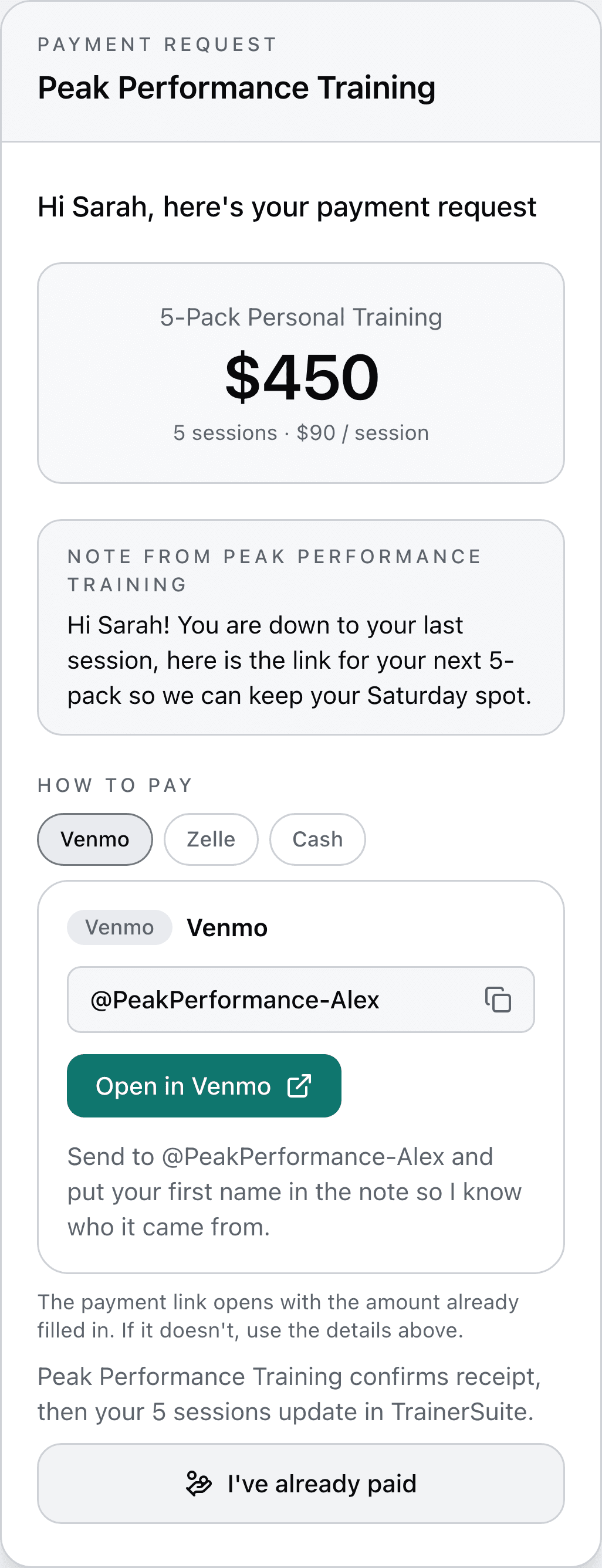
The whole page your client opens, with your handle and your own instructions on it.
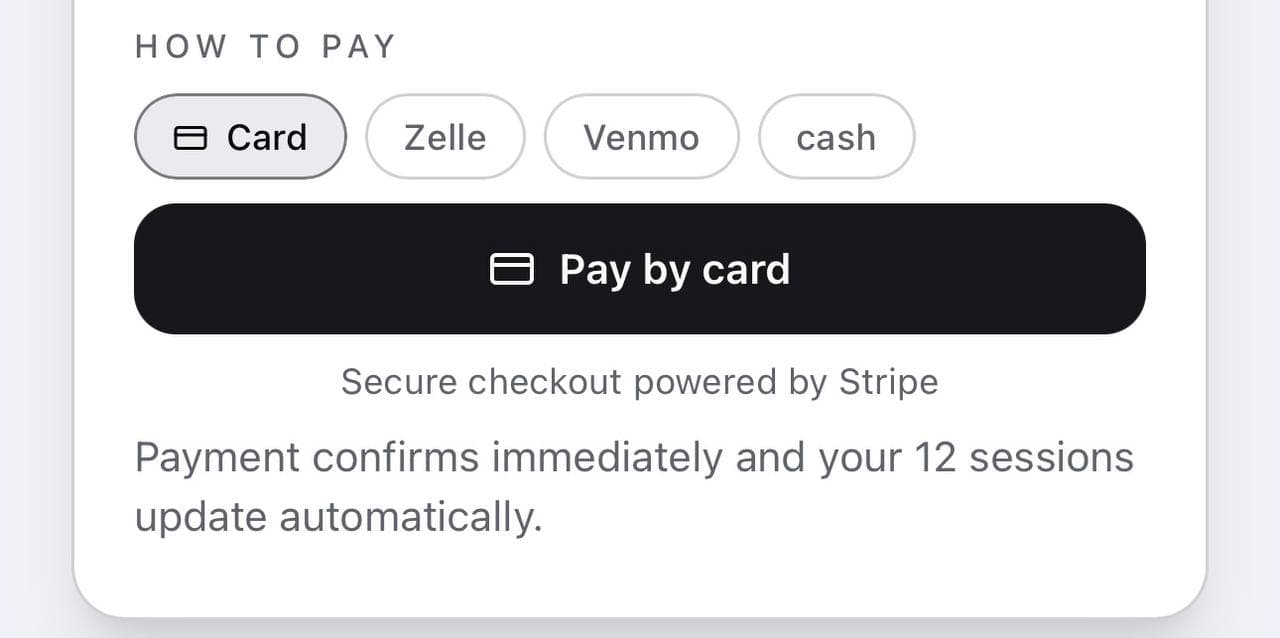
With Stripe connected, Card can lead. Checkout confirms the payment and adds the sessions on its own.
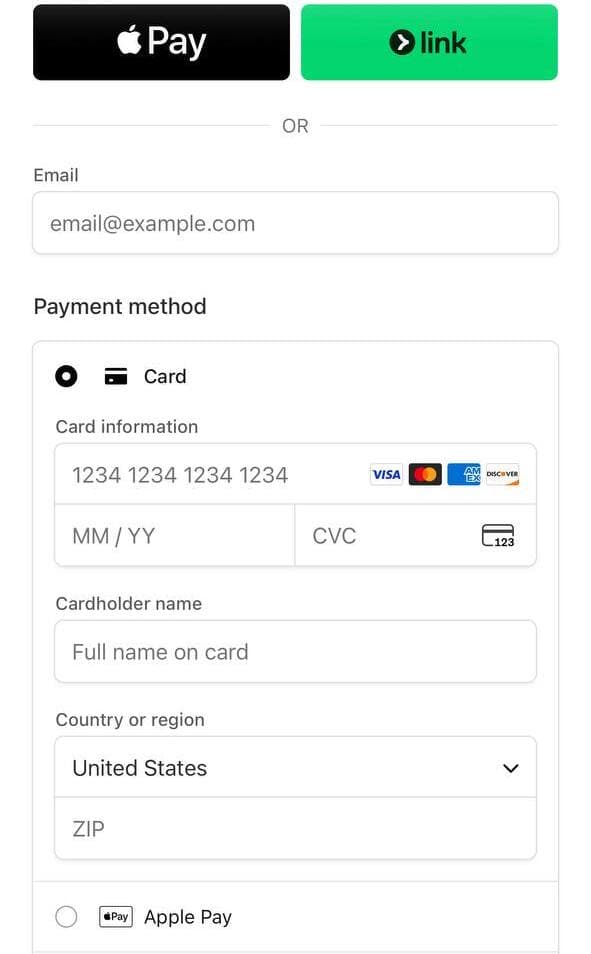
Apple Pay, a card, or Link, on Stripe's own checkout page.
Confirm, and the credits land
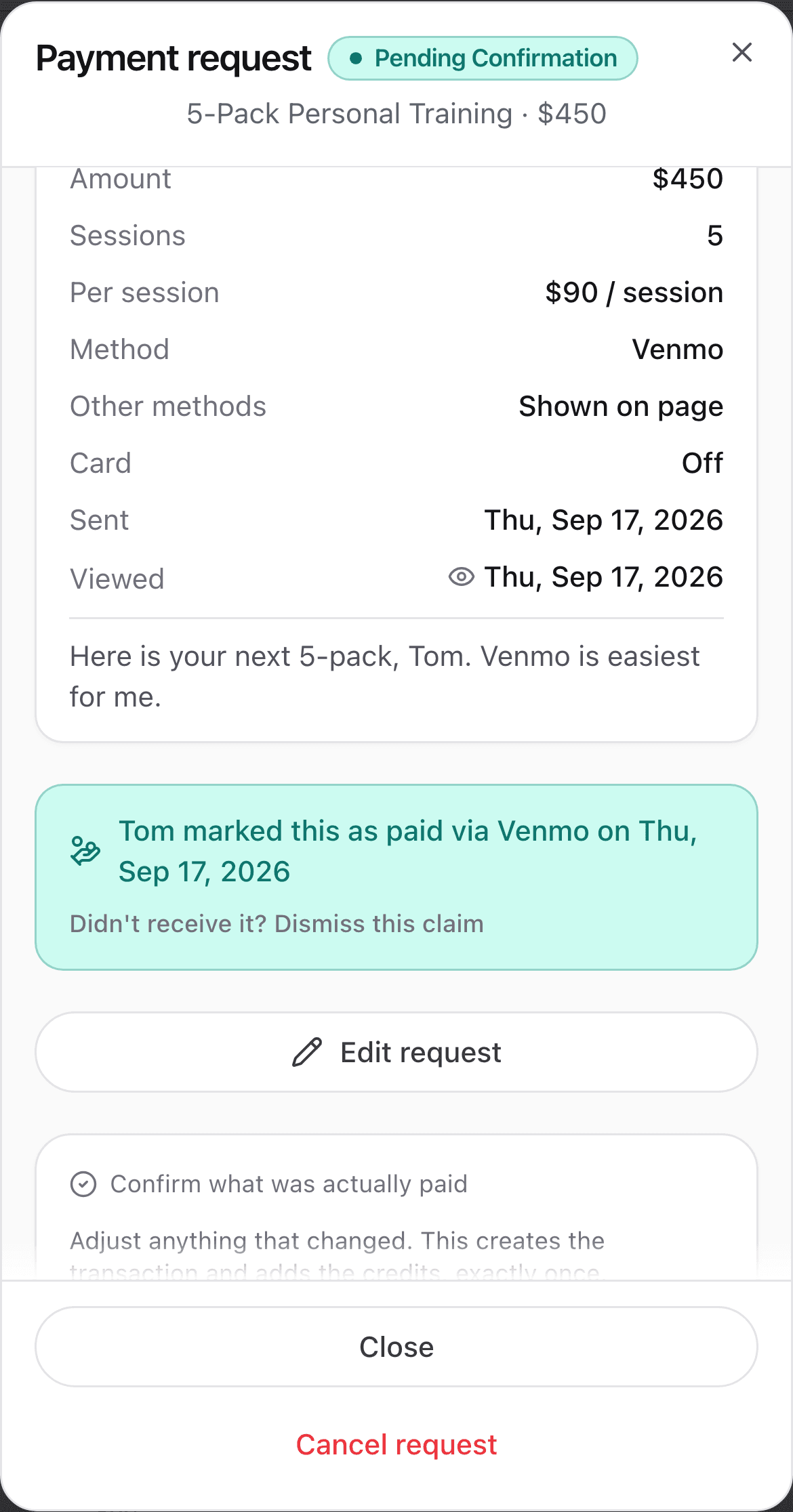
Card payments confirm themselves and add the sessions. For everything else you tap Confirm payment received, adjust what was actually paid if the number changed, and the credits are added exactly once.
You can follow a request from Draft to Sent, Pending confirmation, and Paid or Confirmed.
Let TrainerSuite chase it
Payment reminders go out on their own and you choose how often and how many. Turn them off for a single request, or for one client, whenever you want.
The lines this never crosses
- Your client pays you, not TrainerSuite. The methods you already use never touch us at all, and a card payment is charged on your own Stripe account.
- Sending a request charges nobody. Nothing is added to a client's balance until the payment is confirmed.
- A link pasted into a text shows no amount and no name until your client opens it.
- Every payment but card waits on you. You confirm what was actually paid, and the credits are added exactly once.
Common questions
Does my client need the app?
No. The link opens for anyone, and your client does not need an account to pay. Clients who do use the TrainerSuite app with notifications on get a Payment requested notice on their phone as well.
Does sending a request charge anyone?
No. Nothing is added to their balance until the payment is confirmed, and nothing is recorded until you confirm it.
What happens when they pay by Venmo?
The Venmo link opens with the amount already filled in. If it does not open, your handle and your instructions are right there on the page. They send it, then you tap Confirm payment received and the credits are added.
Does the money go through TrainerSuite?
No. Venmo, Zelle, Cash App, PayPal, cash, check and bank transfer all happen directly between you and your client, and TrainerSuite only records them. Card payments are charged on your own Stripe account, so your name is on your client's statement and the payout goes straight to your bank.
When do the credits show up?
Card payments add them right away, because the payment confirms itself. Everything else adds them the moment you confirm the money came through.
Founding trainer access
Ask once. Get paid the way your clients already pay.
TrainerSuite is opening carefully with independent trainers. Founding access is selective while onboarding and migration stay hands-on.